Show Mode
The live operator interface — workspaces, status cards, transport, Show Lock, PANIC, and safe operation under pressure.
Show Mode is the operator interface for live performance. It shows only what the operator needs, locks out editing, and keeps the safety controls — STOP and above all PANIC — reachable in a fraction of a second. This page covers every surface and control in detail.
Entering Show Mode
Entering Show Mode runs Preflight automatically:
- In Edit Mode, switch the header mode switch to SHOW.
- Review the preflight modal:
- Blocking errors (red) prevent entry — fix them with Jump to cue or Return to Edit Mode.
- Warnings (yellow) can be acknowledged and proceeded past with Acknowledge warnings and enter Show Mode; the acknowledgement applies to this session and the current warning conditions.
- Click Enter Show Mode.
Note: You cannot bypass red blockers. A show that fails preflight does not go live by accident. See Preflight.
Workspaces
Show Mode offers panel presets called workspaces: Theatre, Audio Playback, Video Playback, Museum, Commissioning, and Custom. Workspaces rearrange panels only — they never change what the show does. Pick the workspace that matches your role and the density of information you want on screen; rearrange panels to taste under Custom.
Core surfaces
- Now Running — the largest status card. Shows the active cue’s name, status (running, paused, fading), elapsed and remaining time, parent group breadcrumb, loop/fade/mute badges, and a progress bar. Reflects the highest-priority active cue; “No active cues” when idle.
- Next Armed — what GO will fire: cue name, type, continuation mode, and an after-next preview.
- Program Output status — the state of visual output: current source, blackout/test-pattern state, window state (closed, windowed, fullscreen).
- Live Context strip — a compact readout of the show’s current context: position, armed cue, and global state.
- Cue List — the show as the operator runs it, with status and arming indicators. Groups can be collapsed (
←) and expanded (→). - Transport — the control buttons, detailed below.
- Engine Ready — global engine status shown at all times; if the engine is not ready, no GO is possible.
Optional panels
Additional panels can be added to any workspace:
- Cue Details — full detail of the armed cue.
- Multichannel — live multichannel routing state.
- Outputs & Mapping — output windows, blackout, and test pattern controls.
- Program Preview — Program / Mapped views of the visual output.
- LTC / Timecode — the configured internal or external clock position and input status.
Note: External LTC/MTC can drive the timecode clock and cue crossings. Input reception does not arm triggers; STOP/PANIC require deliberate rearming. See Timecode (MTC / LTC).
- Notes — operator notes and memo history.
- Show Feed — a running log of show events.
- Take Next panels (Audio / Video) — dedicated Take Next control surfaces.
- Runtime State / Variables — live variable values.
- Trigger Inbox and Trigger Monitor — incoming external input and mapping activity. See Control Mapping and the Trigger Inbox.
- Diagnostics — engine diagnostics. The Capability Diagnostics variant is developer-facing support tooling; operators normally leave it closed.
Transport buttons
The transport bar carries, in order:
- BACK — step the armed cue backwards.
- RESTART — stop the running cues in the selected cue’s subtree and re-arm the selected cue from a clean state.
- GO — fire the armed cue (
Space). - NEXT STEP — advance a stepped video cue one step (
N). - TAKE NEXT — fire the armed cue via the Take Next mechanism (
Enter). See below. - PAUSE — pause running cues (
P). - STOP — stop running cues (
S). STOP uses a two-step re-arm: after it fires, it must be re-armed before it can fire again, so it cannot trigger twice by accident. STOP is blocked under Show Lock — see the Show Lock section below for the PANIC guidance. - RESUME — resume paused cues (
R).
GO semantics
GO fires the currently armed cue (Space). After a cue completes:
- Auto-Continue fires the next cue immediately.
- Auto-Follow arms the next cue and waits for GO.
- Manual waits for GO at every cue.
When the show has run to completion, the first GO re-arms the show at its end position; a second GO starts it again. The operator always knows what will happen because Next Armed shows it before GO does it.
Take Next
Take Next (Enter, or the TAKE NEXT button) fires the armed cue through the Take Next path — the mechanism used for stepped content such as stepped video cues, where each Take advances the cue one step rather than starting a new cue. Stepped cues announce how many steps remain on their status card.
Show Lock
Show Lock (Cmd/Ctrl+L, or the lock toggle) freezes the show against accidental change. Under Show Lock:
- Transport buttons are disabled — except PANIC.
- STOP is blocked deliberately; a locked show cannot be stopped by a stray press. In an emergency under Show Lock, use PANIC — PANIC always works.
- Editing, undo/redo, New/Open project commands, and trigger-setting changes are blocked engine-wide. Save remains allowed.
Warning: Show Lock is a toggle, not an authentication system — there is no PIN. Communicate clearly about lock state in shared booths.
Blackout and Test Pattern
- Blackout (
B) clears visual output immediately and works even under Show Lock. - Test Pattern (
T) displays a test pattern on the output — use it to confirm signal path during setup. - Output Window toggle (
O) opens or closes the output presentation window.
PANIC
PANIC is the emergency brake. It is deliberately the easiest control in the application to reach:
- Press
Escape, or click the dedicated PANIC button in the safety zone of the transport bar. - Everything stops: running cues, pending transitions, output.
- A PANIC ACTIVE banner appears and stays until recovery.
- Recovery is deliberate, never automatic: click Recover from Panic and confirm. All transport is blocked until recovery completes.
Warning: Use PANIC only in genuine emergencies. For normal end-of-scene transitions use STOP. Show Lock does not block PANIC — that is by design.
Memo acknowledgement
A Memo Cue with Requires Acknowledgement pauses the show flow and waits for the operator. Acknowledge with A or the acknowledge button. The memo’s importance level (Info / Important / Critical) tells you how loudly it demands attention.
Arming and groups
↑/↓arm the previous or next cue without firing anything.←/→collapse and expand the selected group in the cue list — useful for keeping a long show readable mid-performance.
Operator safety checklist
Before every performance:
- Preflight passes with zero red blockers.
- All media files present; bindings to physical displays confirmed.
- Output window on the correct display; blackout and test pattern verified.
- Audio levels conservative; Show Lock state agreed in the booth.
- Backup control method ready; project saved explicitly.
If something goes wrong
- Wrong cue fired — STOP (
S) if needed, re-arm with↑/↓, GO when ready. - Emergency —
Escape(PANIC), then deliberate recovery. - Locked out of STOP — that is Show Lock doing its job; PANIC is the path.
- Video keeps playing — STOP or PANIC clears output; check for looping.
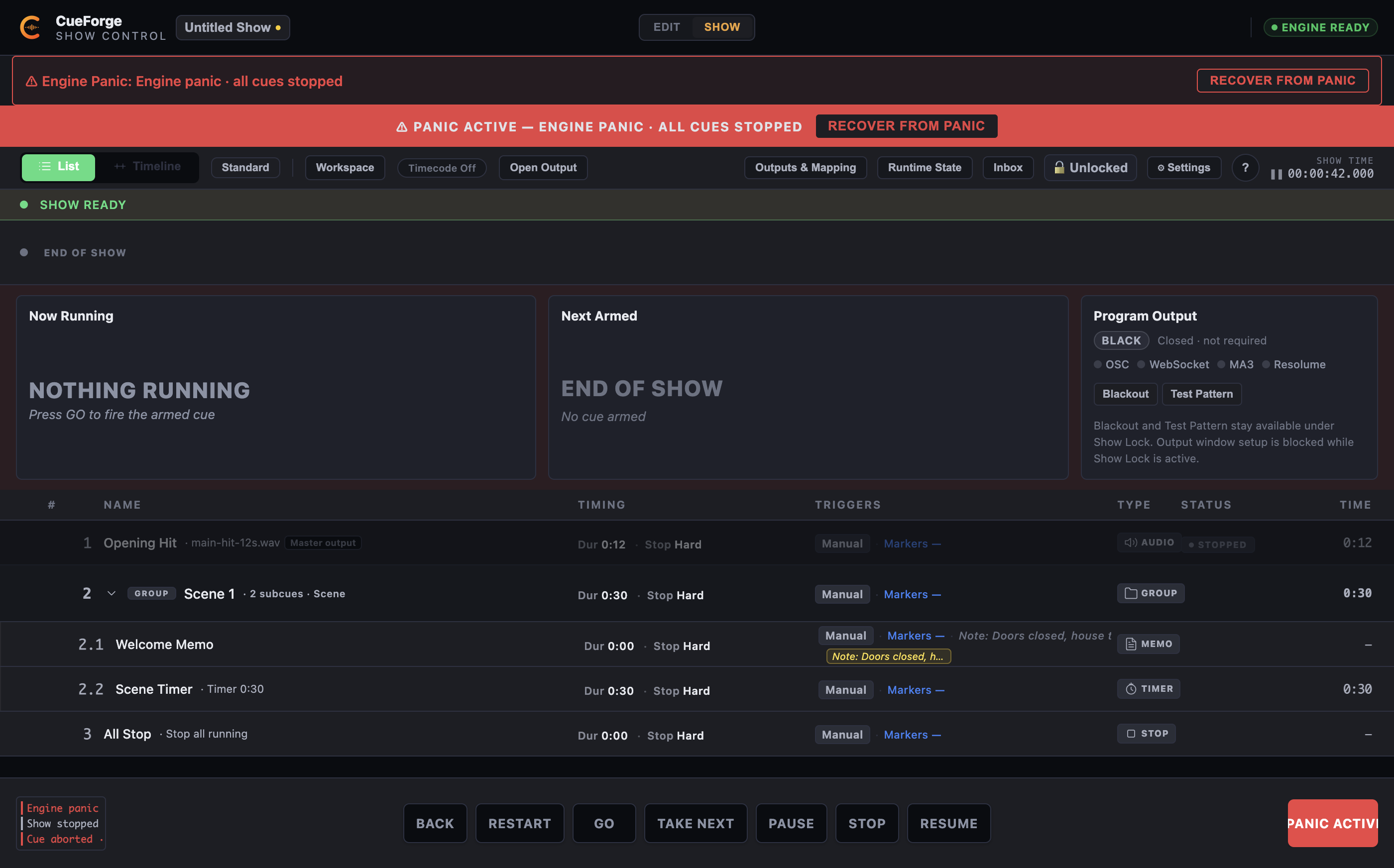
Show Mode during a live take: “Opening Hit” is running with elapsed time, “Scene 1” is armed as next, and the transport bar shows GO, TAKE NEXT, STOP, and PANIC.
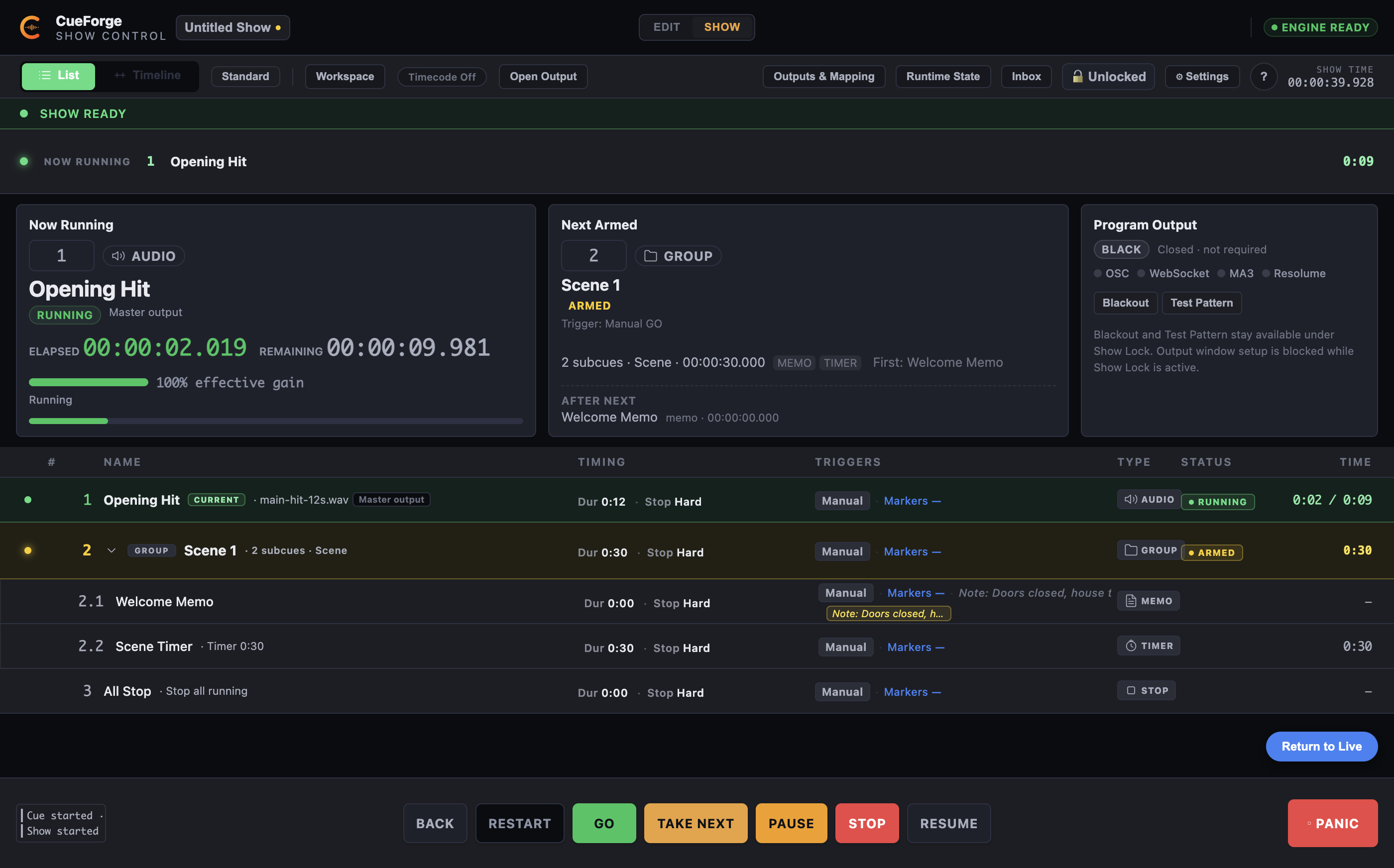
PANIC active: the banner and Recover from Panic button sit above the transport bar, and GO, TAKE NEXT, and STOP are blocked until recovery.