Control Mapping and the Trigger Inbox
Author external control mappings in the Control Mapping window and triage incoming triggers with the Trigger Inbox.
Control Mapping is how CueForge listens to the outside world. It connects incoming OSC, MIDI, and HTTP input — and supported hardware controllers — to show actions: fire a cue, stop the show, adjust a bus volume. The Control Mapping window is where you author and edit those connections; the Trigger Inbox is where unrecognised input waits for a decision.
Tip: For the outgoing direction — CueForge sending OSC, MIDI, and HTTP — see Triggers and the cue editors’ Triggers sections.
Assigning a captured OSC message in 0.99.1
Select the pending Inbox control, choose the target cue/action, and use Assign. Equivalent pending captures covered by the same source mapping are approved together. An OSC address-only mapping can cover multiple values; do not assume that a label such as “Off” automatically becomes a Stop action. Verify the assigned action explicitly.
If a mapping already appears under the cue’s incoming triggers, inspect it before assigning again. Older beta sessions can contain duplicate mappings; 0.99.1 does not silently delete existing assignments. MIDI note-on and note-off remain distinct sources.
Opening the window
Window → Control Mapping opens the “CueForge — Control Mapping” tool window. Re-selecting the menu item focuses the existing window instead of opening a duplicate.
The health strip
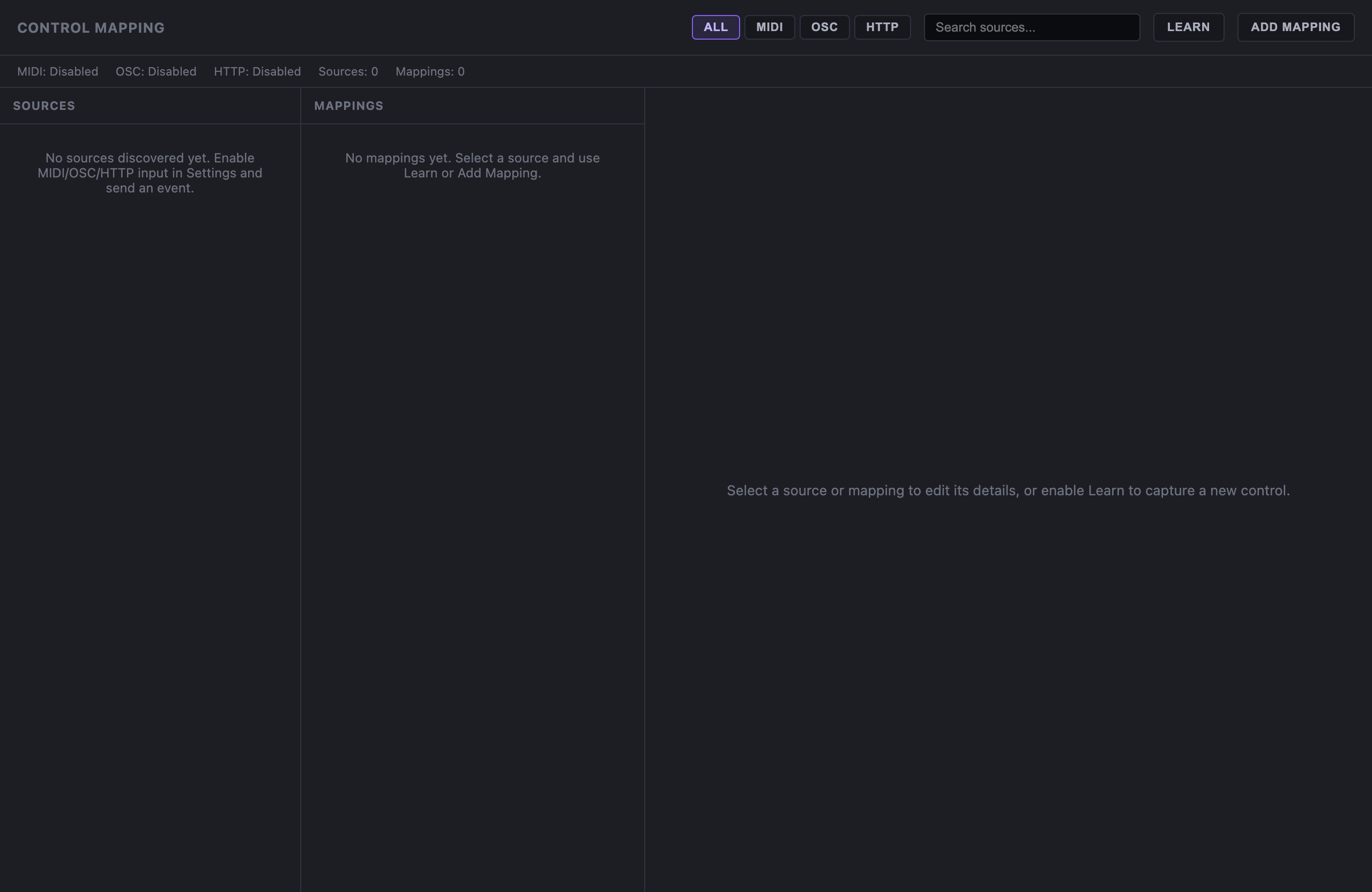
At the top of the window, the health strip reports listener state for each protocol:
- MIDI: / OSC: / HTTP: — each shows Disabled, Listening, Error, or Not connected, along with Sources and Mappings counts.
Disabled almost always means the listener is not switched on. Enable listeners in Settings → Triggers & Control — OSC input (port), MIDI input (device), and HTTP input (port). Show Lock blocks changes to these settings while engaged.
Sources and mappings
The window has two panels:
- Sources — every external control CueForge has seen: protocol, logical ID, and last value.
- Mappings — the rules that connect a source to an action.
Learn workflow
The fastest way to build a mapping is Learn, which captures an incoming MIDI control:
- Click Learn.
- Press the pad, turn the encoder, or move the fader on your MIDI controller.
- CueForge captures the MIDI source.
- Configure the target (below) and click Create Mapping.
- Click Stop Learning when done.
Note: In this beta, Learn is MIDI-only. OSC and HTTP sources cannot be captured with Learn — they appear in Sources (and as proposals in the Trigger Inbox) as soon as they arrive; select the source there and assign its target in the mapping editor.
The mapping editor
Each mapping defines how a source behaves and what it does.
Control Mode:
- Momentary — fires while held (button).
- Toggle — alternates state on each press.
- Continuous — follows a value (fader, encoder as absolute).
- Relative Encoder — responds to increments and decrements.
Target family — one of three:
- Global Show Action — GO, Stop All, Panic, Pause, Resume, Next/Previous Cue, Take Next, Restart Show.
- Cue Action — Go, Stop, Pause, Resume, Restart, or Arm a specific cue.
- Continuous Parameter — Bus gain, Cue gain, Opacity, or Pan, with Source Min/Max, Target Min/Max, and Invert to scale the value.
Use Create Mapping, Save Mapping, and Delete to manage mappings.
Discrete sources (pads, buttons) suit Global Show Actions and Cue Actions. Continuous sources (faders, encoders) suit Continuous Parameters. A fader mapped to a GO will misbehave; match the mode to the hardware.
The Control Mapping window with the health strip showing MIDI, OSC, and HTTP input disabled, and empty Sources and Mappings panels.
The Trigger Inbox
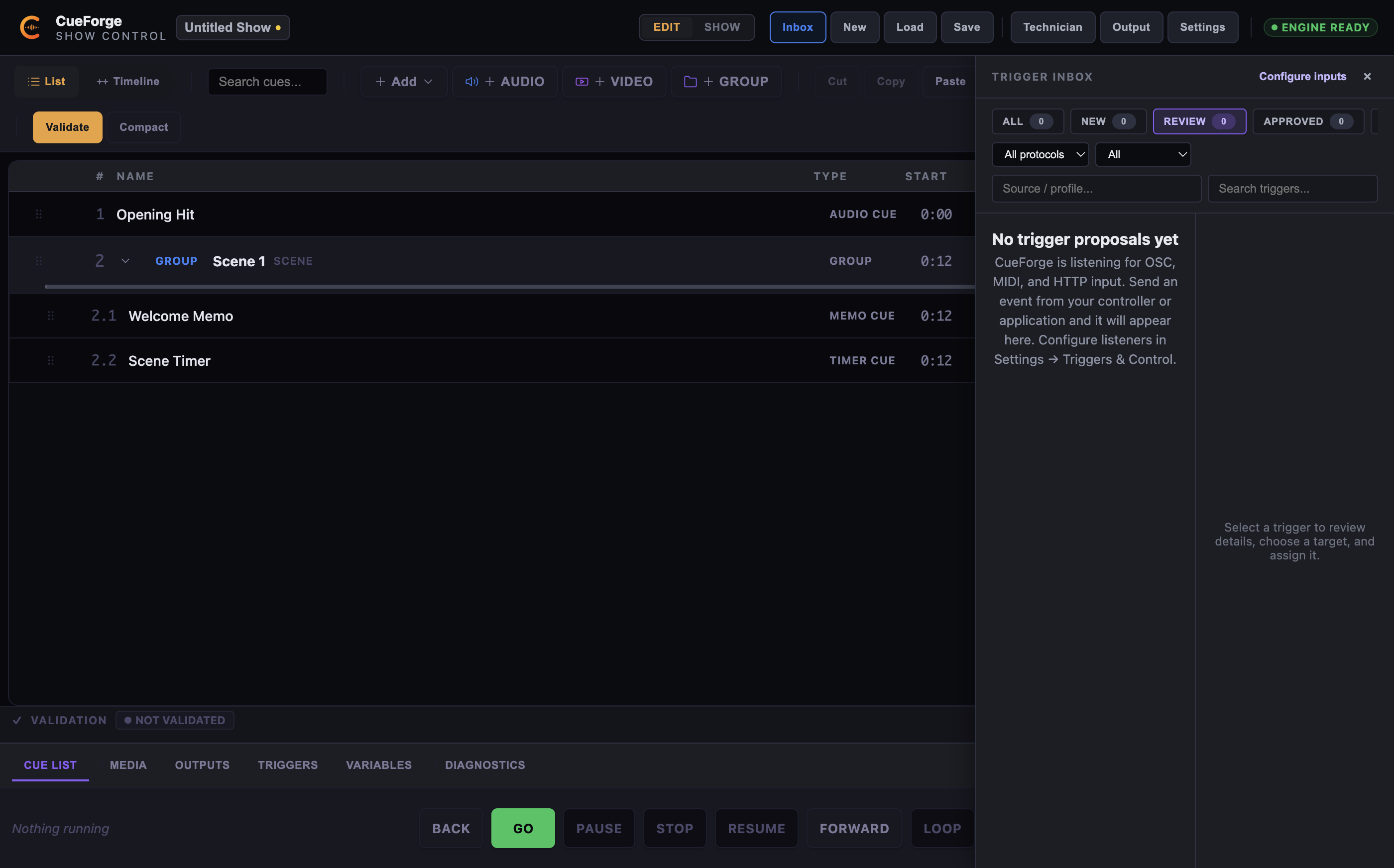
Input that arrives without a matching mapping lands in the Trigger Inbox — a drawer in the main window (open it from the top-bar Trigger Inbox button) plus an optional panel in Show Mode. Each proposal offers:
- Approve — turn it into a mapping.
- Test — fire it once to see what it would do.
- Ignore — leave it parked.
- Reject — dismiss it.
- Locate — jump to related context.
The empty state points you to Settings → Triggers & Control to enable listeners. Show Lock disables approve, reject, ignore, and test — triage waits until the show is unlocked.
The Trigger Inbox drawer in the main window, shown in its empty state — no unassigned input has arrived.
Behaviour guarantees
- Exactly-once execution — a trigger fires its action once, verified with real software senders (MIDI via IAC, OSC via UDP, HTTP via curl).
- Coalescing — rapid repeated input is coalesced; CueForge never fires a burst of duplicate actions.
- Rate limit — input above 100 triggers per second is queued (depth 256) and throttled.
- Distinct controls — MIDI note-on and note-off are distinct controls, so a release never re-triggers an action.
- HTTP matching — HTTP input always returns 200 and matches on method + path only.
- Duplicate sources — when two mappings could match one source, the first mapping wins.
- Feedback-loop suppression — CueForge suppresses mappings that would loop output back into input (for example, a mapping whose target fires the OSC message that triggers it).
If a device disconnects and reconnects, mappings resynchronise when the listener comes back.
Preflight and diagnostics
External control is checked by preflight (external_control.* families): listener states, source conflicts, and feedback-loop risk all surface before Show Mode. See Preflight.
Hardware controller profiles
CueForge ships profiles for three hardware controllers:
- Akai APC Mini MKII — all nine faders, the pads, and LED feedback, with resynchronisation after reconnect.
- Allen & Heath SQ — GO, Stop, Panic, Pause, Resume, Next, and Previous.
- SoundSwitch Control One — Play/Pause, Back, Shift, BPM Tap, and encoders.
These profiles are implemented and covered by automated tests, but physical validation on the real hardware is still in progress. Do not promise hardware behaviour to a production until the physical sessions have confirmed it — rehearse with your own controller before showtime.