The Audio Deep Editor
The complete reference for CueForge's Audio Deep Editor — waveform, audition transport, beat grid, markers, phrases, and actor support.
The Audio Deep Editor is CueForge’s detailed authoring surface for Audio Cues. It gives you the waveform, the audition transport, the beat grid, markers, phrases, and actor voice tracks in one place. It is an Edit Mode tool: everything you do here is preparation, and nothing in the Deep Editor can affect the live show.
Playback and waveform checks
Use PLAY, PAUSE and STOP in the editor’s preview transport. Clicking or dragging the waveform while preview is active seeks that audio; while stopped it places the authoring cursor. The compact Inspector waveform and the main/detached Audio Editor use the same audition transport. Verify both sound and playhead after a seek.
If there is silence, inspect the Master device/channel binding and gain/mute settings before replacing media. If a click feels delayed, report the waveform surface, whether sound or picture lags, the audio file format and the output device. A moving playhead alone is not proof of audible response.
Opening the Deep Editor
There are three ways in:
- Inspector → Open Deep Editor — the embedded Deep Editor opens inside the main window.
- Open Detached in the editor header — opens the Deep Editor in its own window, so you can author audio detail side by side with the cue list.
- Window → Open Prep Authoring Window — the detached Deep Editor from the Window menu.
Only one detached Deep Editor window exists at a time. If it is already open, choosing the menu item again brings it to the front instead of opening a duplicate.
If no Audio cue with a file is selected, the editor shows a prompt: “Select an Audio cue with a file to view the waveform timeline.” While the editor connects to the playback engine you may briefly see “Connecting to engine…”.
Layout
The Deep Editor is organised in three bands:
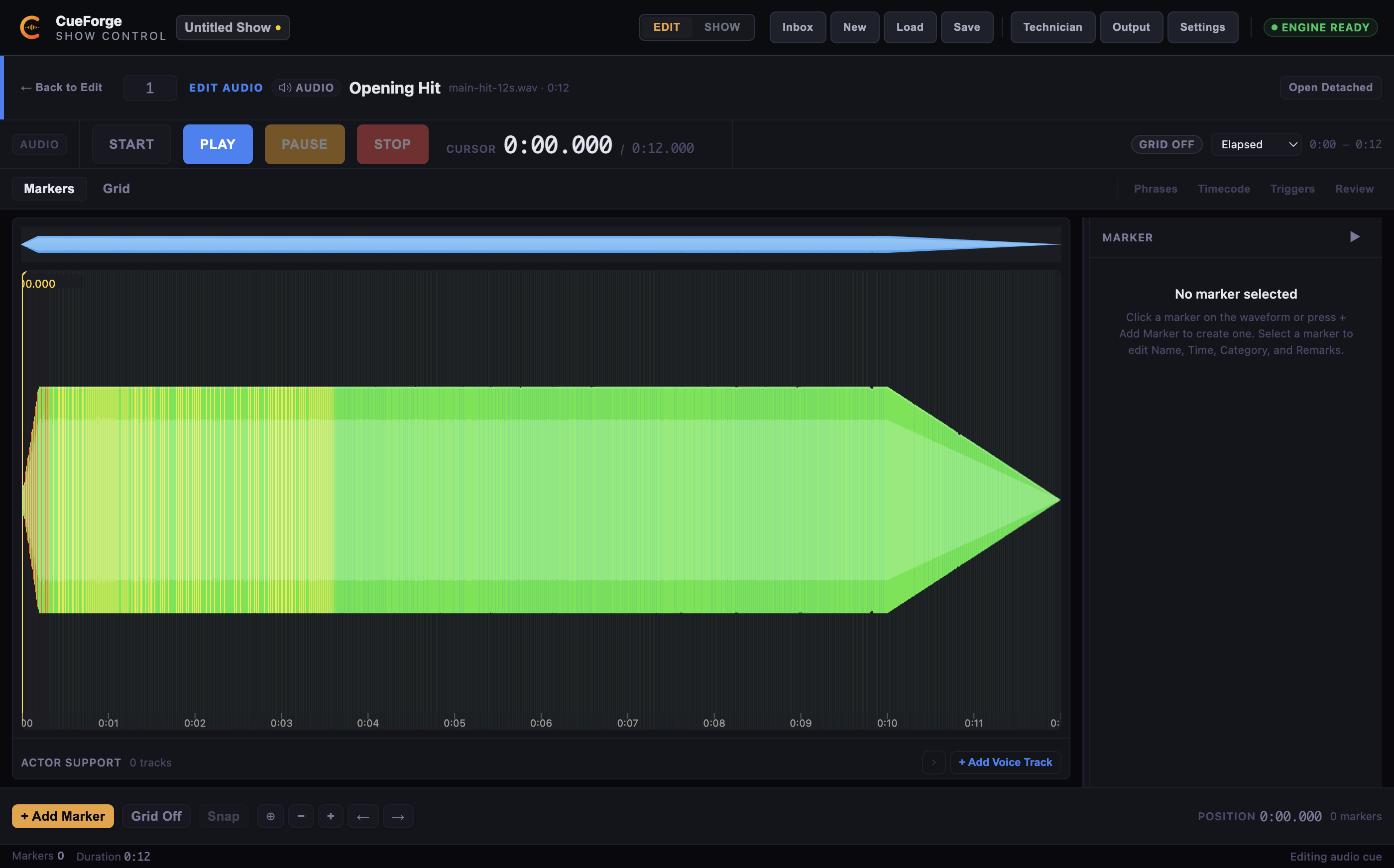
- Top — preview transport. The audition transport and header (see below).
- Centre — waveform and inspector. A single main waveform canvas with a floating toolbar, plus the inspector for the selected marker, phrase, or grid.
- Bottom — global tools. + Add Marker, Grid On/Off, Snap, zoom and pan controls, position readout, the Draft badge, and the marker count.
The embedded Audio Deep Editor: audition transport on top, analysed waveform in the centre, marker tools along the bottom.
Audition transport
The top band previews the selected cue. Its buttons are Start, Play (which toggles to Resume while paused), Pause, Stop, and an optional Loop. A position label shows the current position and total duration, and the musical context (BPM and time signature) appears when a beat grid is configured.
Note: This is an audition transport only. It never contains GO or PANIC — preview uses the configured audible route, currently sharing Master, and natural completion ends the audition quietly without errors.
Header
The header shows an Audio chip, the time display mode selector, the viewport range readout, and grid status:
- Time display mode — switch between Elapsed, Show Time, Timecode, Frames, Samples, and Bars/Beats. Bars/Beats requires a configured beat grid.
- Grid badges — a grid on/off badge, and a Locked badge when the beat grid is locked against accidental edits.
Waveform
The centre of the editor is a single main waveform canvas. When a file is first loaded, analysis runs in the background with progress states (“Analyzing audio…”, “Detecting transients…”, a percentage, and Cancel if you want to stop it). The waveform refines as analysis completes.
The floating toolbar over the waveform offers:
- Zoom — zoom to fit, zoom out, zoom in.
- Pan — pan left and right along the timeline.
- Follow Preview — toggle whether the view follows the audition playhead.
- Create phrase by dragging on the waveform — drag across a region of the waveform to define a new phrase.
Beat grid
The Grid tools configure the beat grid: Grid On/Off, Snap (markers and phrase edges snap to grid lines), and the BPM display with the time signature in the header. A Locked badge shows when the grid is locked.
Markers
Markers are named points in time on the audio. Use + Add Marker to place one at the current position, then set its name and category in the marker inspector. There are 21 marker categories in five groups. Markers appear directly on the waveform and in the marker list, and they are the anchors for trigger mappings and Jump To Marker flow actions.
See Markers and Cue Points for the full marker workflow.
Phrases
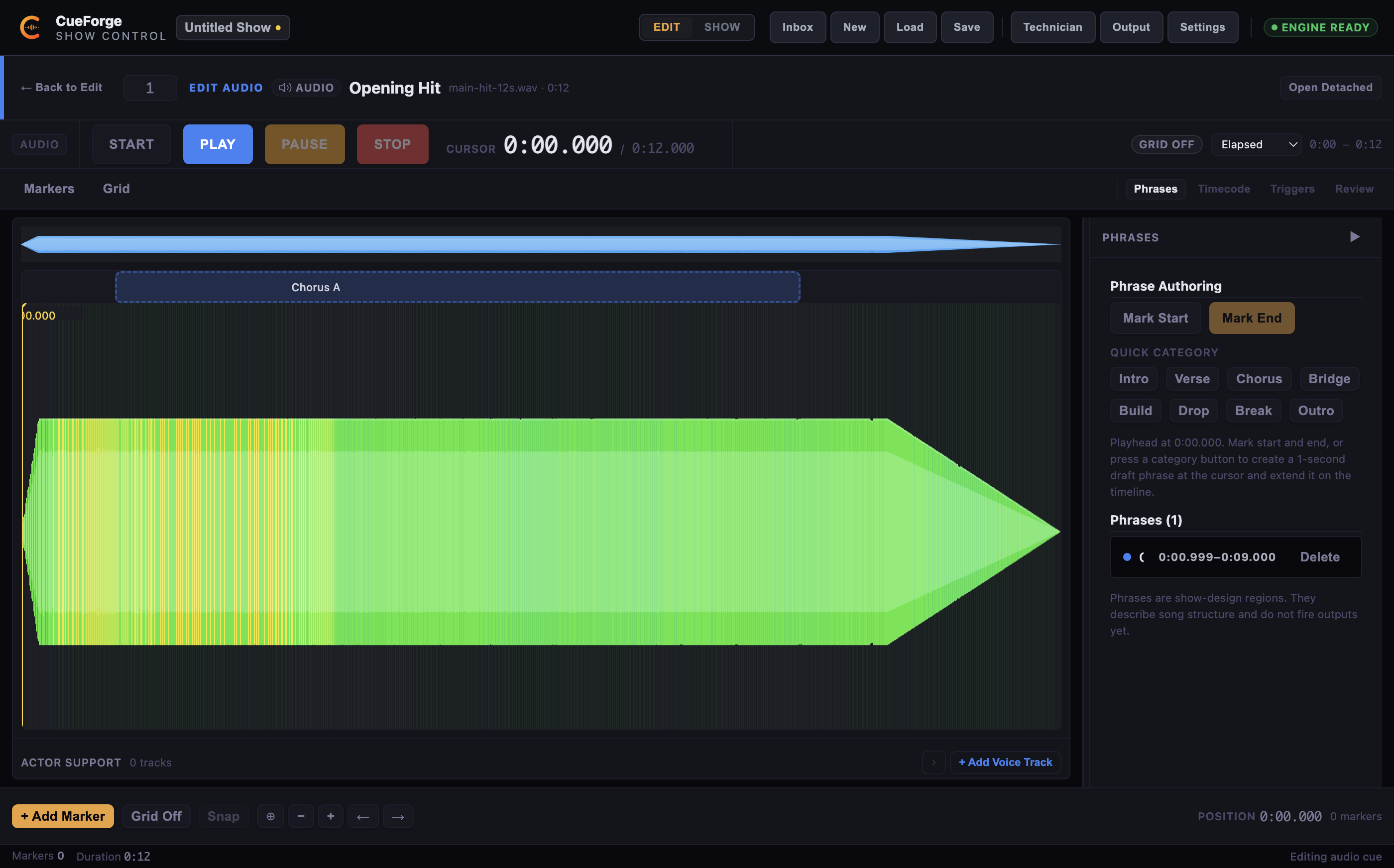
Phrases label the structure of a piece of music — Intro, Verse, Chorus, and so on. The Phrase Authoring card is the baseline workflow:
- Mark Start / Mark End — set the phrase boundaries from the current audition position.
- Drag on the waveform — draw the phrase region directly on the canvas.
- Quick Category buttons — Intro, Verse, Chorus, and the other categories create a one-second draft phrase that you drag to extend.
The phrase inspector shows Name, Start, End, Category, colour, and remarks, with a two-step Delete to prevent accidental removal. The Phrases (n) list card counts and lists every phrase on the cue.
Note: The editor states this explicitly in its footer: “Phrases are show-design regions. They describe song structure and do not fire outputs yet.”
The phrase authoring baseline is verified in the beta. Advanced phrase features — beyond marking structure — are deferred to a later release.
Phrase authoring with a committed “Chorus A” region shown on the waveform, and the Phrases list.
Actor Support
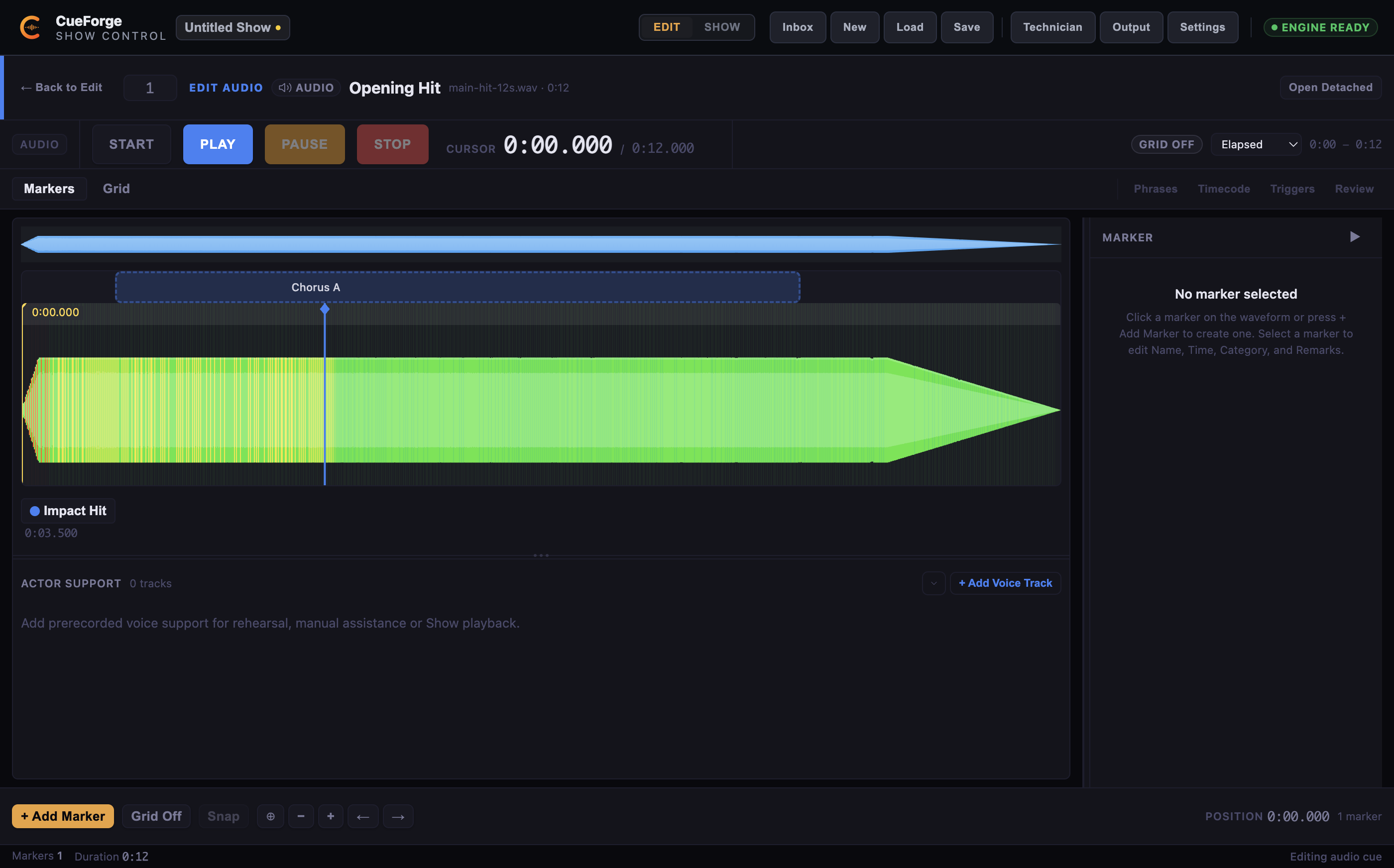
Actor Support adds voice tracks to an Audio cue — for example, a performer speaking over a music bed. It is a collapsible panel with + Add Voice Track, where each track has an Actor name and a Source file, plus:
- Mode — Rehearsal only, Manual in Show, or Enabled in Show.
- Activation — Join parent time (start where the parent cue starts) or Start from beginning.
- Trims, fades, and gain per track, and Mute, Solo, and Delete controls.
Actor Support is optional, and its playback wiring is still being refined. Treat it as a rehearsal aid unless you have rehearsed with it in your specific show. Do not promise cast or crew behaviour that depends on it without testing it in the venue first.
The Actor Support panel expanded beneath the waveform. Captured with no voice tracks yet; + Add Voice Track creates one.
Draft state
Edits in the Deep Editor are held as a draft until saved. The Draft badge in the global tools row shows unsaved changes. If you select a different Audio cue with unsaved changes, CueForge shows the Unsaved Audio Changes dialog: Save and Switch to keep the draft, Discard Changes to abandon it, or Cancel to stay on the current cue. See Undo, Draft Edits and Dirty State.
Detached editing during rehearsal
The detached window (header Open Detached or Window → Open Prep Authoring Window) is the same editor in its own window. It is the recommended way to work during rehearsal: keep the cue list and Show Mode preparation visible while you mark up audio detail in a second window.