Edit Mode
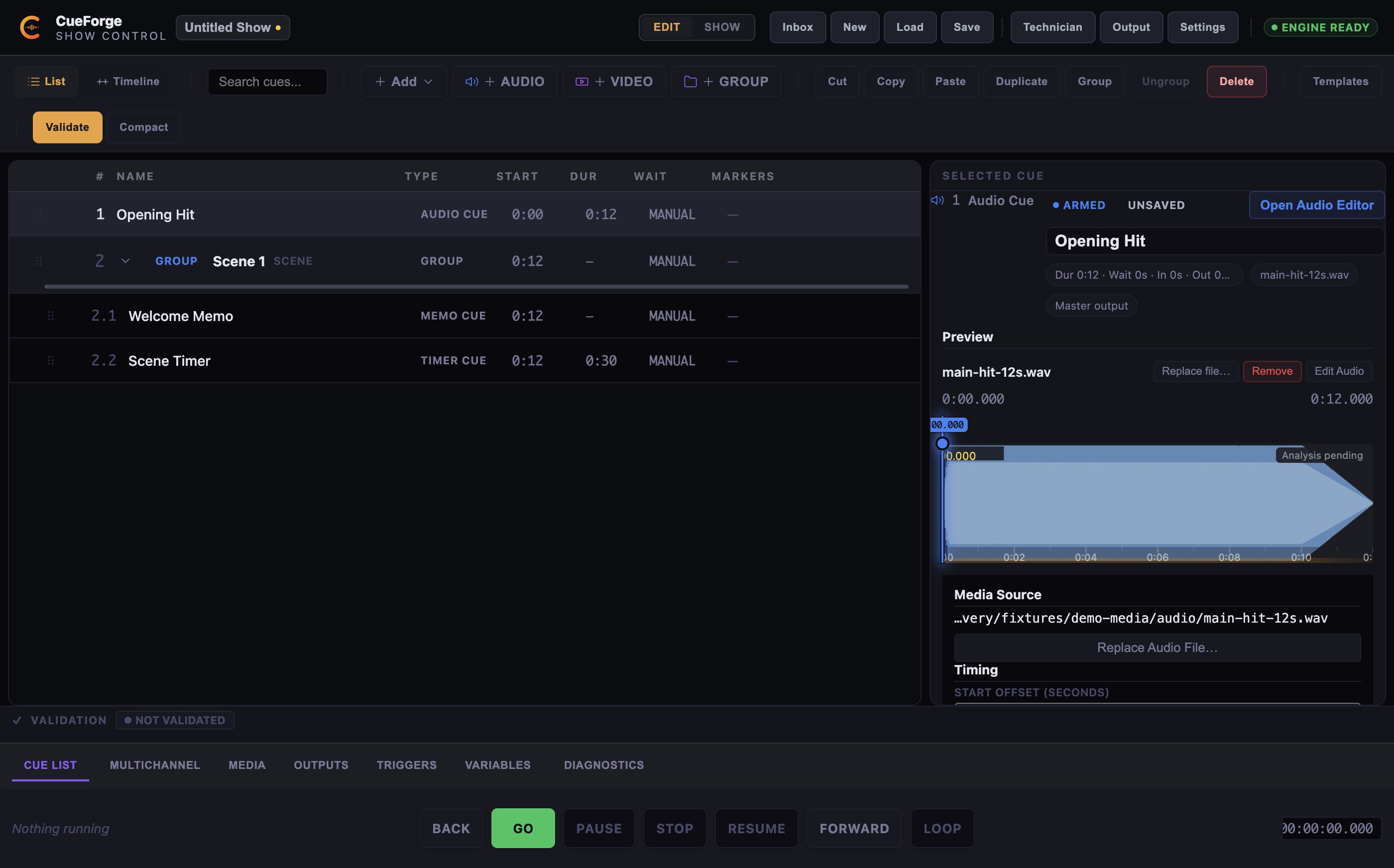
Edit Mode is the safe authoring and rehearsal surface — build cues, audition content, and prepare the show.
Edit Mode is where shows are built. It is the default mode when you open a project, and it is engineered around one guarantee: nothing you do in Edit Mode can fire live output.
What Edit Mode is for
- Authoring the cue list: adding, naming, grouping, and reordering cues.
- Configuring every cue’s settings in the inspector.
- Rehearsing content with the audition transport.
- Detailed audio work in the Audio Deep Editor.
- Output setup, external-control mapping, and all other preparation.
Rehearsal and audition
For audio audition, use Audition in the Inspector or PLAY in the Audio Editor. In Edit Mode, Space toggles audition and S stops it when the relevant transport owns keyboard focus. The preview transport is separate from normal GO, but its audio route currently aliases Master: it can be heard on the show output. Check the device binding and isolate audience outputs during rehearsal.
What is editable
Everything about the show: cue names, media assignments, timing and continuation, fades and levels, groups, output routing, markers and phrases, trigger mappings, operator notes. Cue numbers stay computed; everything else is yours.
The tool windows
Advanced work happens in dedicated tool windows from the Window menu — re-selecting an item focuses the existing window:
- Outputs — the projection-mapping editor for a logical output (Outputs); display binding lives in Settings → Outputs & Displays.
- Show Graph — read-only structure and live trace (Show Graph and Timeline).
- Timeline — timecode ruler following engine show time.
- Control Mapping — external-control authoring and the Trigger Inbox (Control Mapping).
- Open Prep Authoring Window — the detached Audio Deep Editor (The Audio Deep Editor).
Show Lock blocks editing
When Show Lock is engaged, Edit Mode becomes read-only: no cue edits, no undo/redo, no New or Open project, no trigger-setting changes, no media relinking. Saving remains allowed — lock the show, then still save safely. Show Lock is toggled with Cmd/Ctrl+L in Show Mode (or the lock toggle); in Edit Mode a locked show presents itself as this read-only state. See Show Mode.
Keyboard workflow
Edit Mode is designed to be driven from the keyboard: Alt+letter creates cues, Tab/Shift+Tab move cues in and out of groups, F2 renames, Cmd/Ctrl+D duplicates, Cmd/Ctrl+Z undoes. The complete reference is Keyboard Shortcuts.
Saving and autosave
Press Cmd+S to save; the dirty indicator clears when the save completes. CueForge also autosaves every 30 seconds while there are unsaved changes. If CueForge was not closed cleanly, the next launch shows the recovery banner — Restore or Ignore — before the Start Workspace. Full detail: Projects, Saving and Recovery.
Quitting Edit Mode safely
- To move into performance, run preflight and enter Show Mode from the top bar.
- To leave the application, quit with
Cmd+Q. With unsaved changes you get the quit guard — Save and Quit, Discard Changes, or Cancel — and a failed save aborts the quit cleanly.
Note: Physical acceptance of the
Cmd+Qshortcut in Edit Mode is being finalised. If quit does not respond while you are in Edit Mode, use CueForge → Quit CueForge from the application menu. The quit guard dialog itself is fully functional.
Edit Mode with a small show: the “Opening Hit” audio cue selected, and the “Scene 1” scene group with its memo and timer children in the cue list.