Markers and Cue Points
Markers in the Audio Deep Editor — categories, the marker inspector, and firing actions from marker positions.
Markers are named points in time on an Audio Cue. They mark the moments that matter to the show — downbeats, verse starts, lighting hits, impacts — and they anchor everything from beat alignment to trigger actions. Markers are authored in the Audio Deep Editor; this page covers the marker workflow, and The Audio Deep Editor covers the full editor.
Opening the marker tools
- Select an Audio Cue with a media file.
- Click Open Deep Editor in the cue editor (or Open Detached in the header for a separate window).
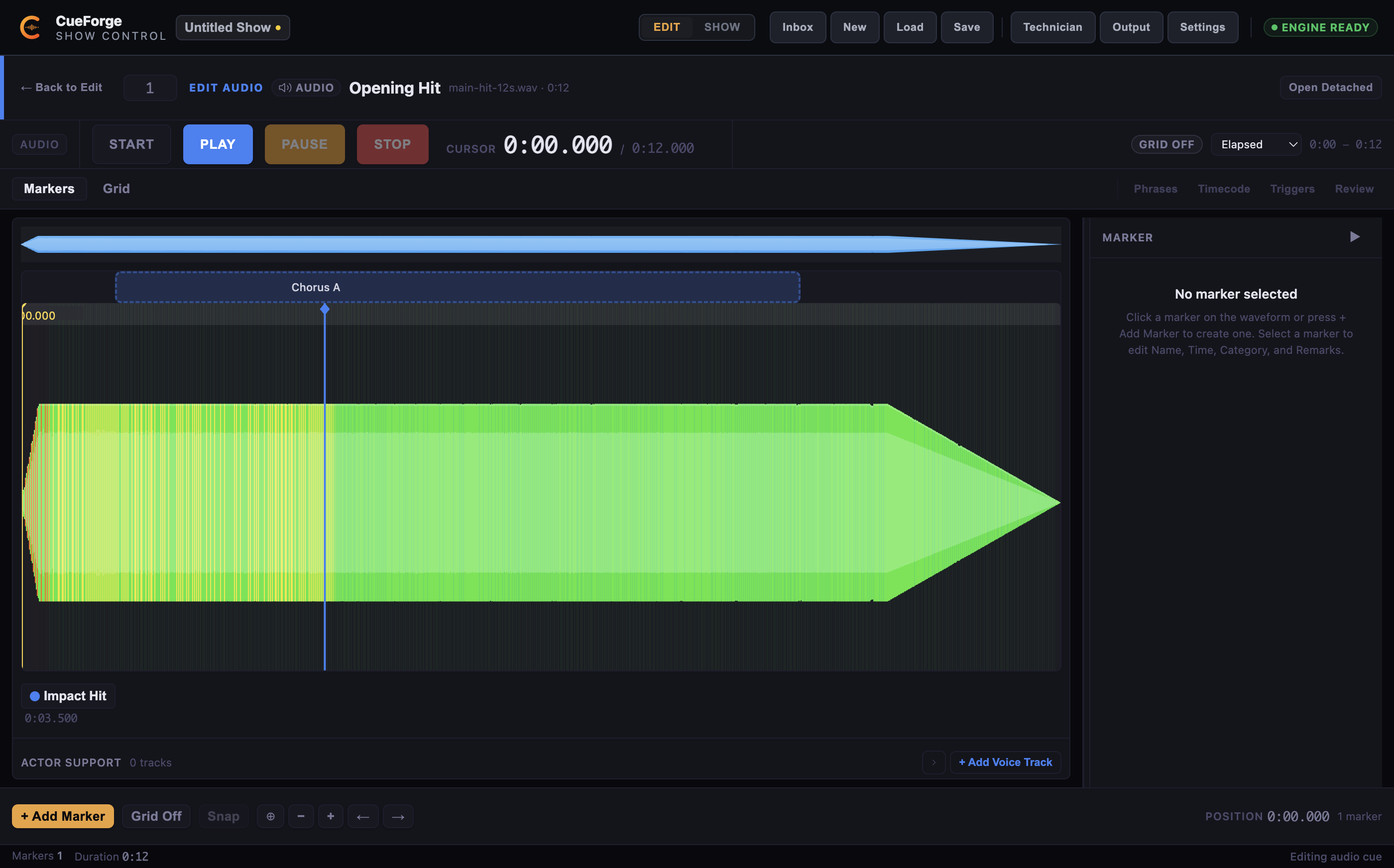
- The waveform appears with the marker tools along the bottom: + Add Marker, grid and snap controls, and the marker count.
Note: With no Audio Cue selected — or an Audio Cue with no file — the Deep Editor shows “Select an Audio cue with a file to view the waveform timeline.” Markers need a waveform to sit on.
Adding a marker
- Start the preview transport and listen, or drag the playhead to the moment you want.
- Click + Add Marker.
- The marker inspector opens: name the marker and choose a category.
Markers sit on the waveform at their exact time position and also appear in the marker list, so you can find and edit them without scrolling the waveform.
Categories
Markers come in 21 categories across 5 groups, so a show file stays legible to everyone who opens it:
- Music — structural points such as Intro, Verse, Chorus, and Bridge
- Show — production moments such as Lighting Hit, Video Hit, SFX, and Blackout
- Documentation — working notes for the production team
- Performance — points tied to blocking or performer action
- Other — anything that does not fit the above
Choose the closest category even for quick work — a marker labelled correctly is searchable and self-explanatory months later.
Editing and removing markers
- Drag a marker on the waveform to reposition it; enable Snap to lock placement to the beat grid.
- Edit name, category, and position in the marker inspector.
- Delete from the marker list or the inspector. Deleting asks for confirmation before the marker is removed.
From markers to actions
Markers become operational through the cue editor’s Triggers section. Every cue editor has a Triggers section — Add one to fire this cue from OSC, MIDI, HTTP, or another cue — and the flow-control actions include Jump To Marker, which moves playback to a marked position when the action fires. External devices firing actions are mapped in the Control Mapping window, and unassigned incoming input is triaged in the Trigger Inbox. See Triggers and Control Mapping and the Trigger Inbox.
Markers and phrases
Markers label single moments. When you want to describe a region of the song — a verse, a chorus, a dance break — use the Deep Editor’s Phrases section instead.
Note: “Phrases are show-design regions. They describe song structure and do not fire outputs yet.”
Phrase authoring is covered in The Audio Deep Editor.
Draft vs saved
Markers follow the Deep Editor’s draft model. While marker edits are unsaved, the header shows the Draft badge; switching to another cue opens the Unsaved Audio Changes dialog — Save and Switch to keep the draft, Discard Changes to abandon it, or Cancel to stay on the current cue. Markers saved with the project are reloaded exactly where you placed them. See Undo, Draft Edits and Dirty State.
A committed marker (“Impact Hit”, Lighting Hit category) on the waveform, alongside a committed “Chorus A” phrase region.